

In this tutorial, you will learn how to create a template override for the Article view so that the intro text and full text are rendered separately. This makes it possible to apply different CSS styling to the intro section of an article.
In Joomla, template overrides allow you to customise the HTML output of components without modifying core files. This ensures your changes are upgrade-safe and maintainable.
What We Are Changing
By default, the article layout outputs the combined article text like this:
<div class="com-content-article__body">
    <?php echo $this->item->text; ?>
</div>
We want to replace it with this:
<div class="com-content-article__body_intro">
    <?php echo $this->item->introtext; ?>
</div>

<div class="com-content-article__body">
    <?php echo $this->item->fulltext; ?>
</div>
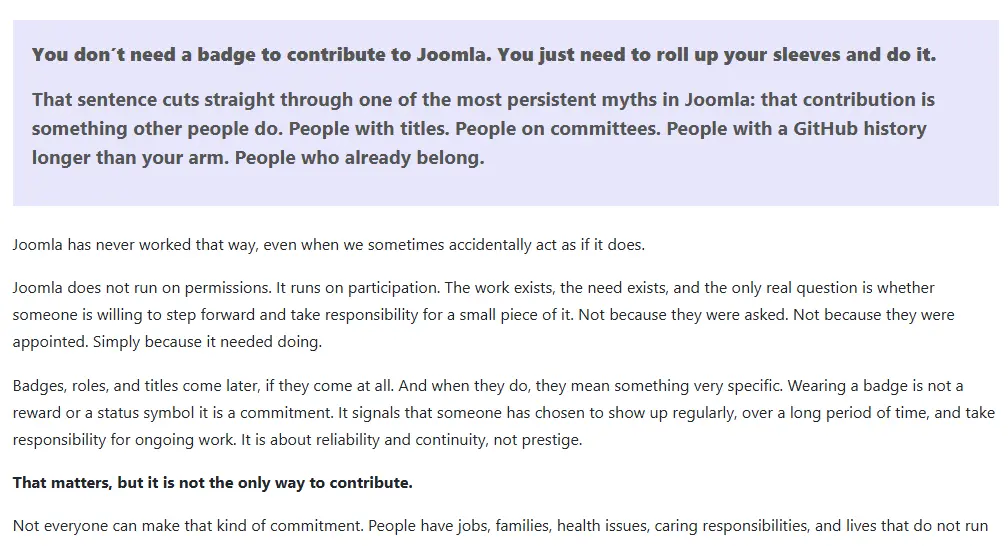
This change allows us to style the intro text differently from the rest of the article.
Important: Using the Read More Break
For Joomla to store content separately as introtext and fulltext, you must insert a Read More break into your article when editing it.
When editing an article:
- Place your cursor where you want the intro to end.
- Click the Read More button in the editor toolbar.
Everything above the Read More line becomes the introtext. Everything below becomes the fulltext. Without a Read More break, Joomla will not create a separate fulltext value.
Step 1: Locate Your Active Site Template
- Go to Administrator.
- Navigate to System → Site Templates.
- Identify your active template (for example,
cassiopeiaor your custom template).
We will create the override inside this template.
Step 2: Create the Override
Joomla makes this simple:
- Go to System → Site Templates → Templates.
- Click your active template.
- Click Create Overrides.
- Select Components → com_content.
- Click Article.
This creates the file:
/templates/YOUR_TEMPLATE/html/com_content/article/default.phpThis file overrides the core layout located at:
/components/com_content/tmpl/article/default.phpNever edit the core file. Always use overrides.
Step 3: Edit the Override File
Open:
templates/YOUR_TEMPLATE/html/com_content/article/default.phpFind this code:
<div class="com-content-article__body">
    <?php echo $this->item->text; ?>
</div>
Replace it with:
<?php if (!empty($this->item->introtext)) : ?>
    <div class="com-content-article__body_intro">
        <?php echo $this->item->introtext; ?>
    </div>
<?php endif; ?>

<?php if (!empty($this->item->fulltext)) : ?>
    <div class="com-content-article__body">
        <?php echo $this->item->fulltext; ?>
    </div>
<?php endif; ?>
Joomla stores article content as:
$this->item->introtext$this->item->fulltext$this->item->text(combined intro + full)
By outputting the two fields separately, we gain full control over styling.
Step 4: Add Your CSS
Add your custom CSS to your template’s CSS file.
For Cassiopeia in Joomla 6, create or edit:
/media/templates/site/cassiopeia/css/user.cssThen add:
.com-content-article__body_intro {
    font-size: 1.2rem;
    font-weight: bold;
    margin-bottom: 1.5rem;
    color: #555;
    background-color: lavender;
    padding: 1em;
}

.com-content-article__body {
    font-size: 1rem;
    line-height: 1.7;
}
Clear the Joomla cache if necessary and reload your article to see the changes.
Summary
- You created a template override for
com_content. - You separated intro text and full text into different containers.
- You enabled independent CSS styling for the intro.
- You kept your changes upgrade-safe.
Template overrides are one of the most powerful features in Joomla. They allow you to customise output cleanly while keeping your site maintainable and future-proof.
Example of the override in effect


 Congratulations, you discovered a hidden secret!