

Small layout changes can make a big difference to how content is perceived. One of the most effective improvements you can make to a category blog layout is to treat the leading article differently from the rest — visually signalling that it matters more.
By default, Joomla’s blog category layout uses the intro image everywhere. That is sensible, but it also means your most important article often looks no different from the others.
In this article, I will walk through a simple, update-safe way to make leading articles use the full article image instead, while leaving intro and linked items unchanged.
Why change the leading article image?
Leading articles exist for a reason. They are meant to draw attention, set context, and encourage readers to continue.
- Creates a clear visual hierarchy
- Makes featured content stand out
- Encourages better image choices for key articles
- Improves the overall balance of the blog layout
Most importantly, this can be done without touching core files.
The approach
Rather than modifying Joomla’s default output, we use a template override and a small layout adjustment:
- Create (or reuse) a blog category override
- Create a dedicated layout for leading articles
- Swap the intro image for the full image in that layout
- Tell the blog to load the new leading layout
This keeps everything clean, readable, and upgrade-safe.
Step 1: Create a blog category override
If your template already has a blog category override, you can skip this step.
From the Joomla administrator:
- Go to System → Site Templates
- Select your active template
- Open Create Overrides
- Expand Components → com_content
- Click category
Joomla will create the required files in:
/templates/your_template/html/com_content/category/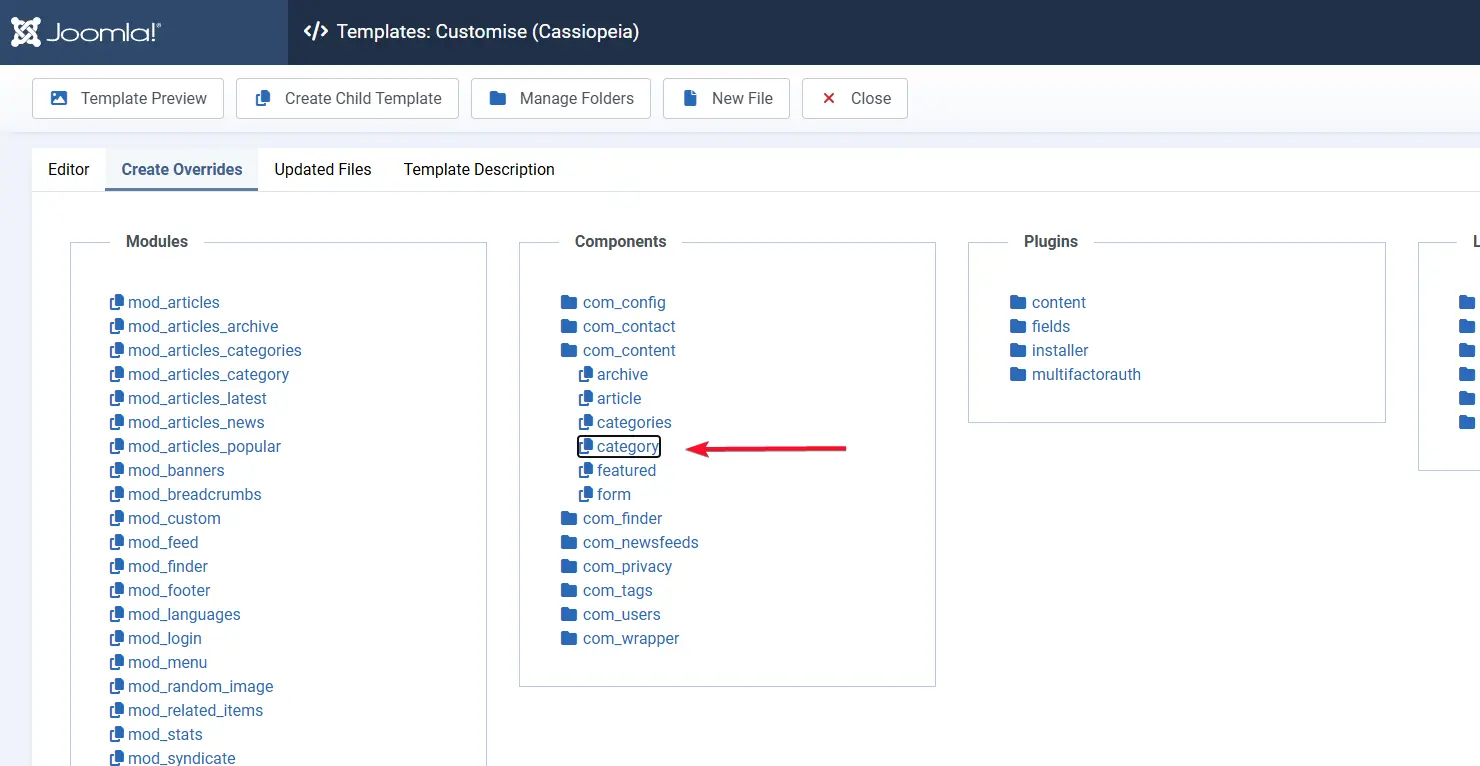
Step 2: Create a layout for leading articles
The standard blog layout uses blog_item.php for article output. We will reuse it as a starting point for leading articles.
Open the override folder:
/templates/your_template/html/com_content/category/Then:
- Create a new file called
blog_leading.php - Copy the contents of
blog_item.phpintoblog_leading.php

Step 3: Switch from intro image to full image
This is the key change.
Open blog_leading.php and locate the image rendering line:
<?php echo LayoutHelper::render('joomla.content.intro_image', $this->item); ?>Replace it with:
<?php echo LayoutHelper::render('joomla.content.full_image', $this->item); ?>This tells Joomla to output the full article image for leading items.
Step 4: Load the new leading layout
The final step is to tell the blog layout to use blog_leading.php for leading articles.
Open:
/templates/your_template/html/com_content/category/blog.phpFind the section beginning with:
<?php if (!empty($this->lead_items)) : ?>Within that block, change:
echo $this->loadTemplate('item');to:
echo $this->loadTemplate('leading');
The result
- Leading articles display the full article image
- Intro and linked articles continue to use intro images
- The layout remains fully update-safe
This is a small adjustment, but one that significantly improves how content is presented.

Final thoughts
Joomla’s strength lies in its flexibility. By understanding how layouts are assembled, you can make targeted improvements that elevate the entire site experience.
Treating leading articles as first-class content is a simple change, but it sends a clear message to your readers: this is worth your attention.


 Congratulations, you discovered a hidden secret!